ShareMii tab
The ShareMii tab moves Miis and UGC items between save files. It uses the same .ltd file format as Star-F0rce’s ShareMii Python tool, so anything exported here can be imported there and vice versa.
Unlike the other tabs, ShareMii doesn’t edit a single save in place, it lets you export a Mii or custom item out of your save into a portable file, or import one from someone else’s.
What you need loaded
Section titled “What you need loaded”ShareMii reads from the same files the other tabs do, and which ones you need depends on what you’re moving:
- Miis need
Player.savandMii.sav. - UGC items (Food, Clothing, Treasure, Interior, Exterior, Objects, Landscaping) only need
Player.sav, but exporting them also needs theUgc/folder from your save, that’s where the textures live.
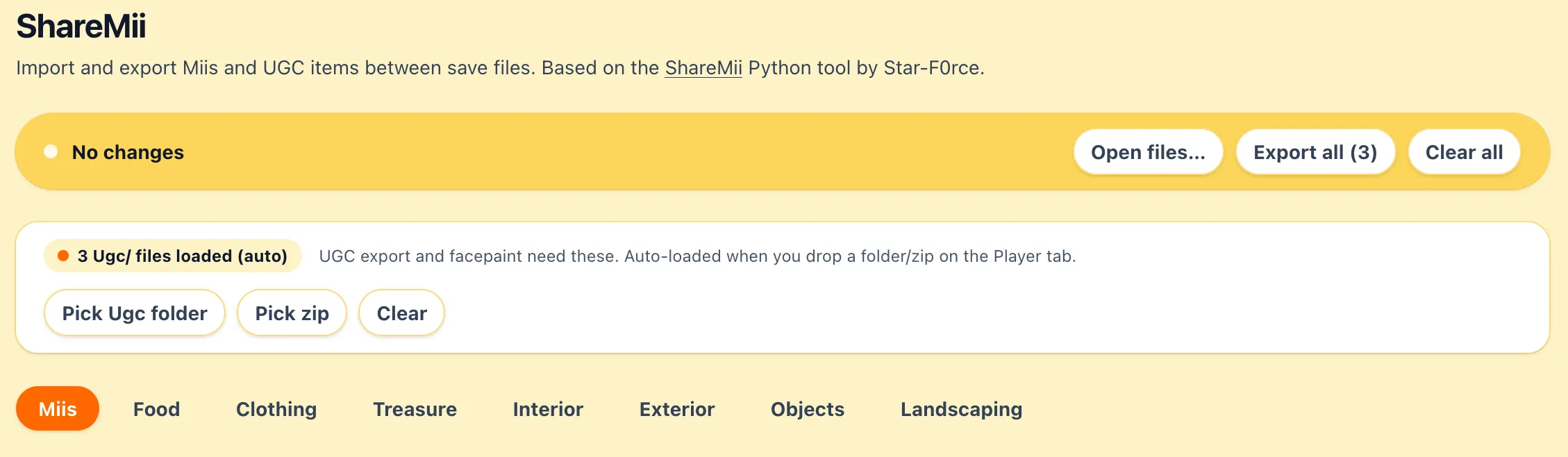
If you’ve already dropped your whole save folder or zip on the Loading page, both of those are picked up automatically and you’ll see N Ugc/ files loaded (auto) in the sidecar bar. If not, the bar offers Pick Ugc folder and Pick zip so you can supply them here.
Picking a content kind
Section titled “Picking a content kind”Across the top of the tab, the Item kind sub-tab bar lists every kind ShareMii handles: Miis, Food, Clothing, Treasure, Interior, Exterior, Objects, Landscaping.
Switching kinds switches the slot list below, each kind has its own set of slots in the save.
Reading the slot list
Section titled “Reading the slot list”Each row in the slot list is one slot in the save. The leading #N is the slot index, the name in the middle is the in-game name (or Mii N / Slot N if the slot was never named), and the buttons on the right are what you can do with it.
For Miis, slot 0 is special, it’s the In-Progress Mii, the one the player is currently building in the Mii Studio. It shows up with a TEMP marker instead of an index, and Export all skips it.
For UGC kinds, the last row is Add new slot, an empty slot you can import into to add a new item without replacing one that already exists.
Exporting
Section titled “Exporting”There are two ways out:
- Export on a single row writes one
.ltdfile for that slot to your Downloads folder. The file name is based on the Mii or item name. Miis come out as.ltd, the UGC kinds use kind-specific extensions (.ltdf,.ltdc,.ltdg,.ltdi,.ltde,.ltdo,.ltdl). - Export all at the top of the section zips every populated slot into one file (
miis.zipor<kind>-items.zip).
Mii exports bundle the custom facepaint texture if the Mii has one.
Importing
Section titled “Importing”Import… at the top of the section opens the import panel. Replace… on a single row opens the same panel pre-targeted at that slot. Add here on an UGC Add new slot row does the same for a fresh slot.
Downloading the result
Section titled “Downloading the result”When the import finishes, the Export All button allows you to export everything.